
How to Export Your Candidate Database Without Losing Your Mind
You’ve wanted to leave that ATS for two years. What’s stopping you isn’t loyalty — it’s the nightmare of a six-week migration that quietly eats half your resumes. Here’s the export order that keeps your history, your relationships, and your sanity intact.
By Ed Burtle · September 14, 2026
Records, relationships, notes, then files — exported in that order and re-linked on the way in — is the difference between a clean database and a pile of orphaned resumes.
Ask an owner why they’re still on software they openly complain about, and the honest answer is almost never “I love it here.” It’s “I’m terrified of the move.” Years of applicant history, client relationships, and thousands of resumes feel too fragile to touch, so the agency stays put and keeps paying — sometimes literally a per-seat tax — for a tool it’s outgrown.
Good news: an export is a procedure, not a mystery. If you know what a bad migration actually loses (spoiler: it’s not everything at once — it’s the associations), you can run the export in an order that keeps them. This is that order. For the companion piece on what tends to break and how to catch it, read the ATS migration checklist.
First, Understand What “Losing Data” Really Means
Nobody’s database evaporates. What actually happens is subtler and worse: silent, partial loss. A candidate imports fine, but the twelve notes attached to them don’t. A placement exists, but it’s no longer linked to the client it belonged to. A custom field full of years of tags maps to nothing and vanishes without a warning. A resume lands in the new system — detached from any human being.
You don’t find out on day one. You find out six weeks later when a recruiter goes looking for a candidate’s history and it isn’t there. The whole game is preserving the links between records, not just the records.
The Export Playbook: Five Layers, In Order
Export in layers, from the most foundational data outward. Do it out of order and your attachments orphan themselves.
1. Core records — with a unique ID on every row
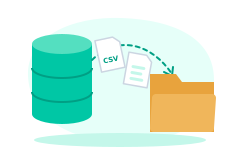
Export your candidates/contacts, clients/companies, job orders, and placements to CSV or Excel. The single most important rule: every row must carry its native unique ID from the old system. That ID is the thread everything else gets sewn back onto. In Bullhorn and similar platforms, both native exports and the API expose these IDs — for large or relationship-heavy databases, the API preserves them more reliably than clicking “export to Excel.”
2. The relationships that link them
This is the layer everyone forgets and every bad migration loses. Export the association data: which candidate is on which placement, which placement belongs to which job order, which job order belongs to which client. These are usually join tables or reference columns keyed by the IDs from step 1. Without them, you’ll have a pile of correct records that don’t know they’re related.
3. Notes and activity history — keyed to the IDs
Export free-text notes, call logs, submittals, and status changes, each tagged with the record ID it belongs to. This is the institutional memory that makes a candidate worth keeping. If a note can’t say who it’s about, it’s noise.
4. Resumes and attachments — with a manifest
Now, and only now, export the binary files: resumes, certifications, signed documents. Export them alongside a manifest — a simple mapping of each filename to its candidate ID. This one step is the difference between “3,000 resumes attached to the right people” and “a folder of 3,000 PDFs named doc_48812.pdf.”
5. Reconcile before you trust it
Count everything on both sides. Candidates in vs. candidates out. Placements in vs. out. Resumes in vs. attached. If the numbers don’t match, you know before go-live, not after a recruiter files a ticket. Not sure how heavy your particular migration will be? The free ATS migration readiness assessment gives you an honest read in a few minutes.
Where FreshStaff’s Migration Engine Fits
You can do all of this by hand. You shouldn’t have to. FreshStaff’s migration engine is built to ingest exactly these exports and do the tedious, error-prone parts for you:
- Field mapping, including your custom fields, so years of tags don’t silently drop.
- Re-linking associations between candidates, job orders, placements, and clients using the IDs you exported.
- Re-attaching resumes to the correct candidate via the manifest, instead of leaving them in a detached pile.
- A reconciliation report that shows record and attachment counts before you commit, so “did we lose anything?” has a numeric answer.
That’s what turns the feared 4–6 week saga into days of checking numbers. And because FreshStaff charges $0 per recruiter seat, the moment your data lands you can add your entire team without another line item.
The Bottom Line
The move off legacy software isn’t risky because data disappears — it’s risky when you export in the wrong order and lose the relationships. Pull records with IDs first, then associations, then notes, then files with a manifest, then reconcile. Do that, hand it to a migration engine that re-links and re-attaches for you, and the scariest part of switching turns into a checklist you can actually finish. Start with the readiness assessment and the migration checklist.
Frequently asked questions
- How do I export candidate data from Bullhorn?
- Export in layers, not one giant dump. First pull your core records — candidates/contacts, clients/companies, job orders, and placements — to CSV or Excel, making sure every row carries its native unique ID. Then export the association data that links those records (which candidate belongs to which placement, which placement belongs to which client). Then export notes and activity history keyed to those same IDs. Finally, export the binary attachments — resumes and documents — with a manifest that maps each file back to a candidate ID. Bullhorn offers native exports and API access; for large or association-heavy databases, the API preserves relationships more reliably than manual CSV pulls.
- How long does an ATS migration take?
- Teams fear 4–6 weeks, and a disorganized migration can absolutely take that long. Most of the time isn't the data transfer — it's field mapping, re-linking broken associations, and hunting down detached resumes after the fact. When you export in the right order with stable IDs and use a migration engine that maps fields and re-links associations for you, the hands-on work usually drops to days, with a reconciliation report confirming nothing was dropped before you go live.
- Will I lose resumes or candidate history when I switch ATS platforms?
- That's the real risk, and it's rarely total loss — it's silent, partial loss. A candidate imports but their notes don't; a placement exists but isn't linked to its client; a resume lands in the system detached from any candidate. You prevent it by exporting attachments with a manifest that maps every file to a candidate ID, exporting notes keyed to record IDs, and reconciling counts (candidates, placements, resumes) before and after. FreshStaff's migration engine re-attaches resumes to the right candidate and re-links associations, then shows you a pre-import reconciliation report.
- What's the correct order to export ATS data?
- Records first, relationships second, history third, files fourth, reconciliation last. Concretely: (1) core records with unique IDs, (2) the associations that link them, (3) notes and activity keyed to those IDs, (4) resumes and documents with a file-to-ID manifest, (5) a before/after count check. Exporting files or notes before you have stable record IDs is how attachments end up orphaned.
- Does FreshStaff help migrate my data off legacy software?
- Yes. The FreshStaff migration engine ingests your exports, maps standard and custom fields, re-links associations between candidates, clients, job orders, and placements, and re-attaches resumes to the correct candidate. It produces a reconciliation report so you can confirm record and attachment counts match before the data goes live. You can also run the free ATS migration readiness assessment first to see how involved your specific migration will be.
Keep reading
ATS Migration Readiness
See how involved your specific migration will be.
Open →ATS Migration Checklist
What actually goes wrong, and how to catch it.
Open →Migration Engine
How FreshStaff maps, re-links, and re-attaches.
Open →Bullhorn Alternatives in 2026
What to compare before you commit to a switch.
Open →The Great Recruiter Seat Tax
Why you're overpaying for seats that placed nobody.
Open →All Free Tools
Every calculator, checklist, and template.
Open →Migrate Without the Six-Week Panic
FreshStaff’s migration engine maps your fields, re-links your associations, and re-attaches your resumes — with a reconciliation report before you go live.